Gmail OAuth
Set up Gmail OAuth for the connector
This section walks through setting up the Gmail connector using a OAuth-enabled Google App. Anyone can do this (even without a paid Google Workspace)!
If you're an organization with a Google Workspace, and you'd rather use a Service Account to access Gmail, it will be available soon!
Authorization
1. Create Google Cloud Project
2. Enable Gmail API
- On the left panel, open APIs & services
- Go to Enabled APIs and services
- On the top click +ENABLE APIS AND SERVICES
- Search for Gmail API and click ENABLE
- Alternatively visit this link, select your project and enable the Gmail API
3. Set up OAuth consent screen
- Under APIs & services, select the OAuth consent screen tab
- If you don't have a Google Organization select External for User Type
- Call the app Negere-Fej (or whatever you want)
- For the required emails, use any email of your choice
- Click SAVE AND CONTINUE
4. Set up scopes
Add the scope .../auth/gmail.readonly for Gmail API
To enable permission syncing for this connector:
- Enable the Admin SDK API (visit this link) and enable it for your project.
- Add the scope .../auth/admin.directory.user.readonly for Admin SDK API.
- Add the scope .../auth/admin.directory.group.readonly for Admin SDK API.
- The account performing the OAuth flow must have an Admin role in the Google Workspace that has access to the "Groups > Read" privilege. This can be set in the Google Admin Console under Account > Admin roles.
Note: Service Account support for Gmail is in development and will be available soon.
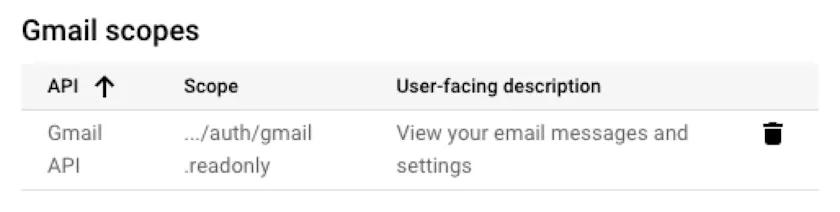
Google Cloud OAuth consent screen with Gmail readonly scope selected
5. Set up test users
This is only applicable for users without a Google Organization.
- Add at least one test user email. Only the email accounts added here will be allowed to run the OAuth flow to index new emails.
- Click SAVE AND CONTINUE, review the changes and click BACK TO DASHBOARD
6. Create OAuth credentials
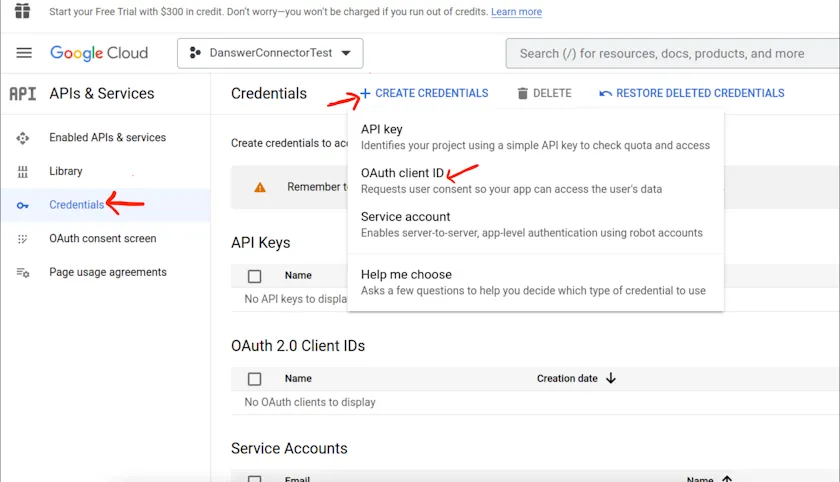
Go to the Credentials tab and select + CREATE CREDENTIALS → OAuth client ID
Creating OAuth client ID in Google Cloud Console for Gmail
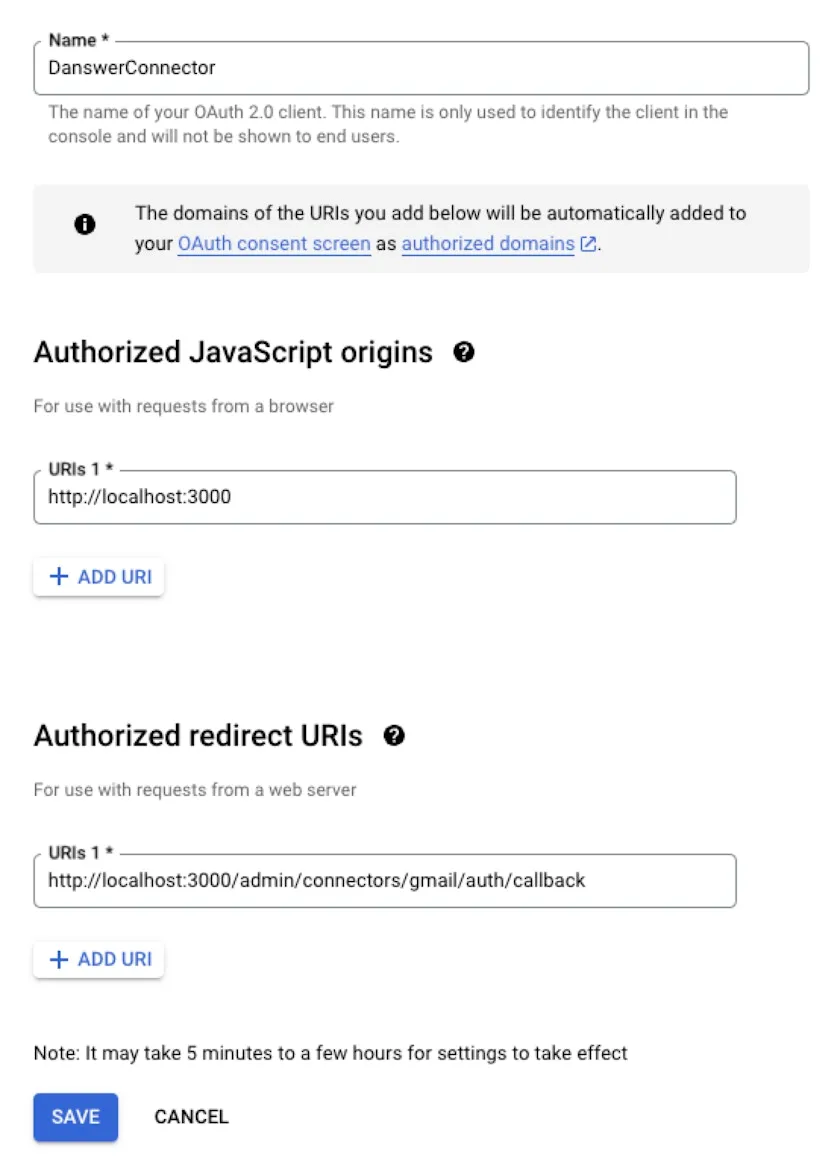
Choose Web application and give it some name like NegereFejConnector
Add an Authorized JavaScript origins:
- http://localhost:3000 if self-hosting
- https://<INTERNAL_DEPLOYMENT_URL> if you have setup Negere-Fej for production use
Add an Authorized redirect URIs:
- http://localhost:3000/admin/connectors/gmail/auth/callback if self-hosting
- https://<INTERNAL_DEPLOYMENT_URL>/admin/connectors/gmail/auth/callback if you have setup Negere-Fej for production use
Authorized origins and redirect URIs for Gmail OAuth client
Click create and on the right hand side next to Client secret, there is an option to download the credentials as a JSON. Download the JSON for use in the next step.
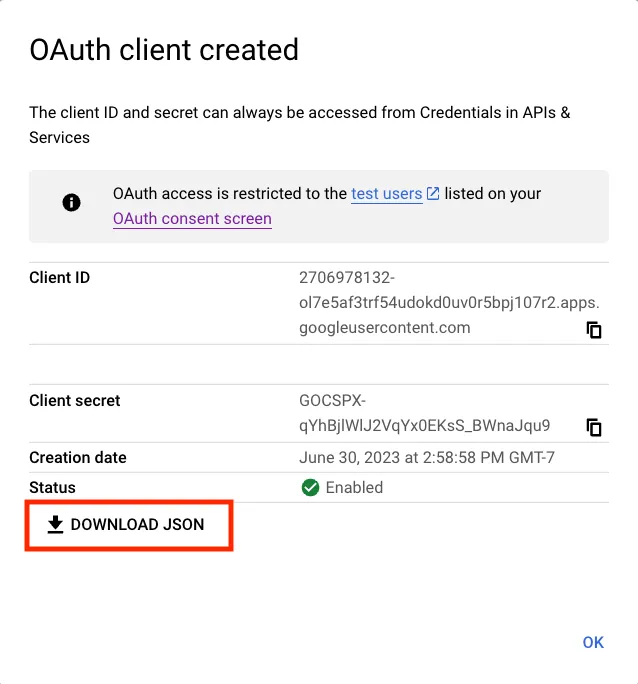
Download OAuth client JSON credentials from Google Cloud Console