Notion
Access pages and databases from Notion
How it works
The Notion connector uses the Notion search API to fetch all pages that the connector has access to within a workspace. For follow up indexing runs, the connector only retrieves pages that have been updated since the last indexing attempt. Indexing is configured to run every 10 minutes, so page updates should appear within 10 minutes.
Setting up
Authorization
In order to authorize Negere-Fej to connect to your Notion workspace, you'll need to create a new integration in Notion, which will then provide you with a secret token. These steps are pulled from this Notion guide which you can also follow.
Step 1: Create an integration
1. Visit integrations page
Visit https://www.notion.com/my-integrations in your browser.
2. Create new integration
Click the + New integration button.
3. Name the integration
Name the integration (something like "Negere-Fej" could work).
4. Set capabilities
Select "Read content" as the only capability required for Negere-Fej.
5. Submit
Click Submit to create the integration.
On the next page, you'll find your Notion integration token, also called an API key. You'll need this token to configure Negere-Fej to index Notion, so make a copy of it.
The integration has been added to the workspace, so any member can share pages and databases with it. There's no requirement to be an Admin to share information with an integration.
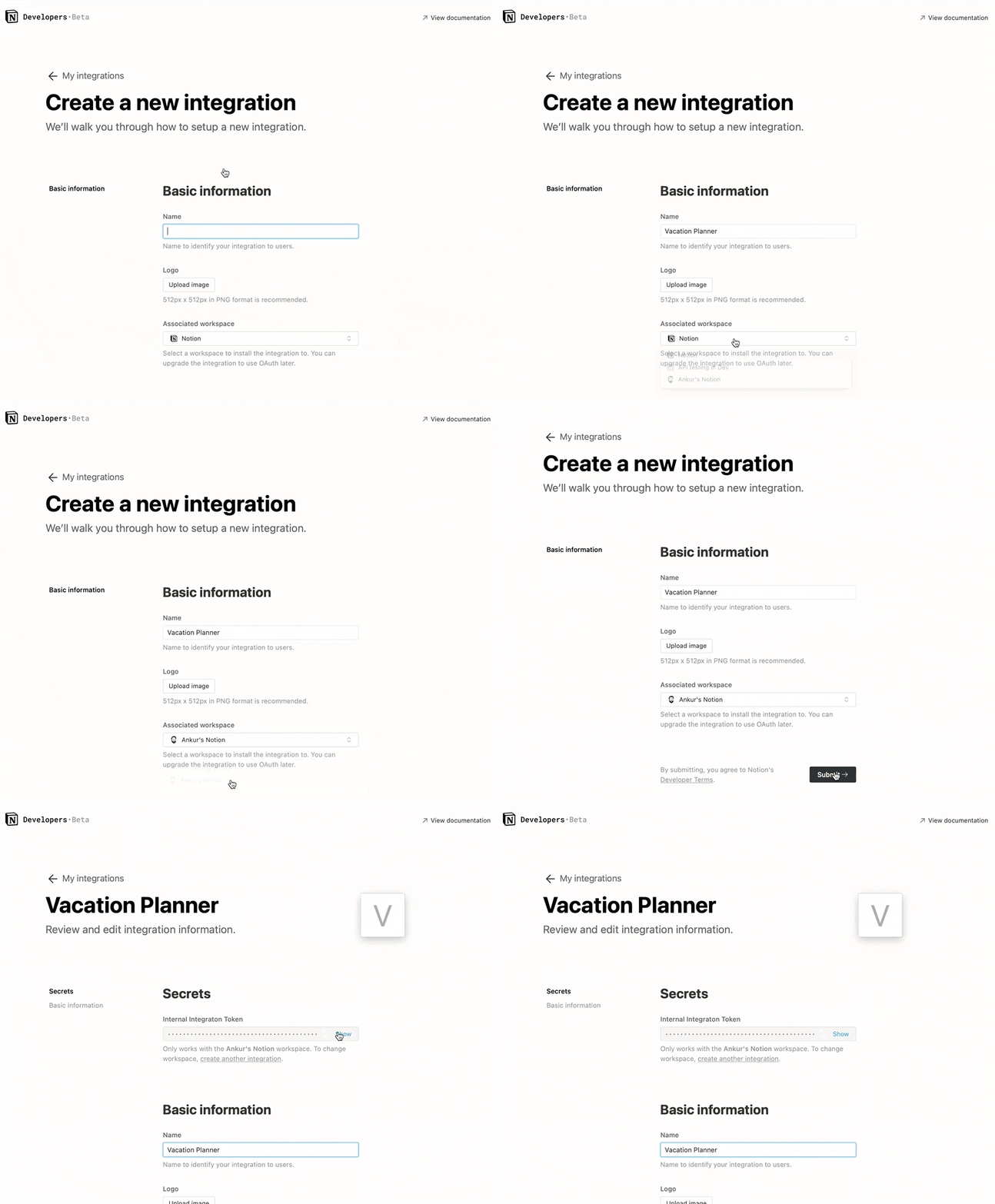
Creating a Notion internal integration in the Notion settings
Step 2: Share pages/databases with your integration
Now that you've created an integration, you need to grant it access to Notion pages/databases. To keep your information secure, integrations don't have access to any pages or databases in the workspace at first. You must share specific pages with an integration in order for Negere-Fej to access those pages.
To share a page/database with your integration:
1. Navigate to page
Go to the page/database in your workspace.
2. Access page menu
Click the ••• on the top right corner of the page.
3. Add connections
Scroll to the bottom of the pop-up and click Add connections.
4. Select integration
Search for and select the new integration in the Search for connections... menu.
5. Note about child pages
- If you've added a page, all child pages also become accessible to Negere-Fej.
- If you've added a database, all rows (and their children) become accessible to Negere-Fej.
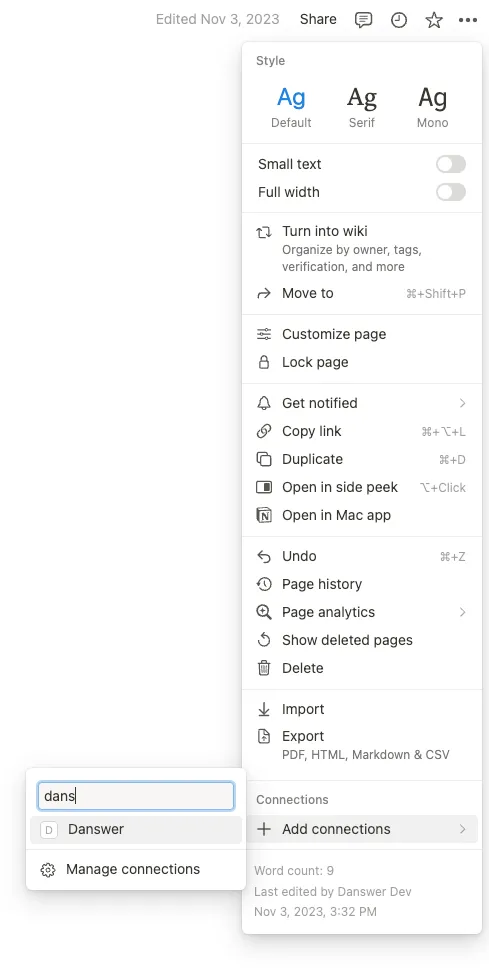
Adding the Negere-Fej integration to a Notion workspace or page
Once you've granted access to a page/database, you can start configuring Negere-Fej to index those databases.
Indexing
1. Open Notion connector
Navigate to the Admin Panel and select the Notion connector.
2. Enter Integration Token
In Step 1, provide the Integration Token Secret you obtained in the "Authorization" steps above:
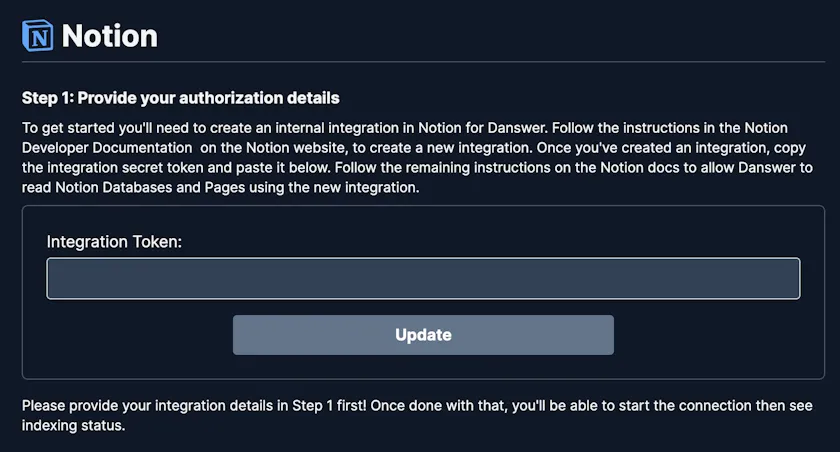
Negere-Fej Notion connector authentication step to connect integration
3. Connect and index
Click the Connect button! Your content will then be pulled into Negere-Fej every 10 minutes.
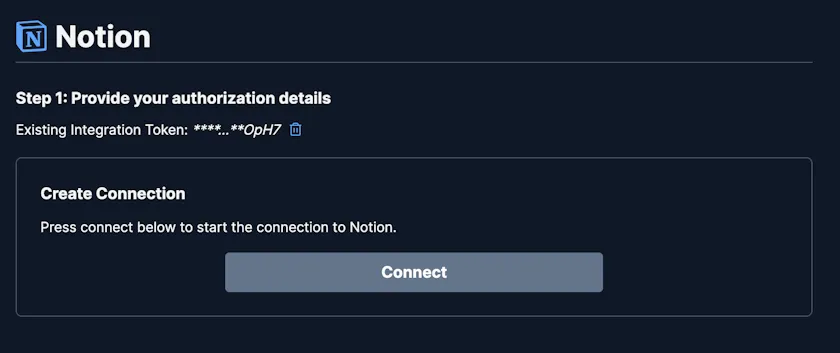
Negere-Fej Notion connector indexing options and selection screen
Note: As mentioned, the Notion connector currently indexes everything it has access to. If you want to limit specific content being indexed, simply unshare the database from Notion with the integration.