S3 Access Keys
Authorize the S3 connector using AWS Access Keys
AWS Access Keys Authorization
Open AWS Console
Log into your AWS Management Console.
Open IAM
Navigate to the IAM (Identity and Access Management) dashboard.
Create user
In the left sidebar, click on "Users" and then "Create user".
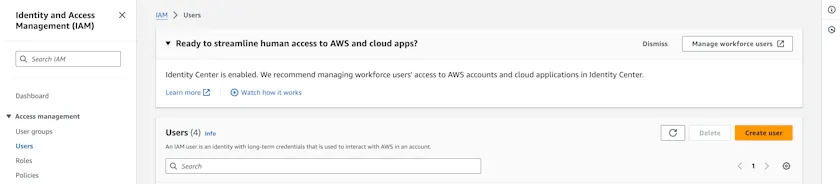
AWS IAM dashboard with Users section for creating a user
Set user details
Set a name for the new user (e.g., "NegereFejS3Connector") and click "Next".
Attach policy
Click "Attach policies directly" and search for "AmazonS3ReadOnlyAccess" or a similarly permissive policy. Select this policy and click "Next".
Create user
Add any tags if needed, then click "Create user".
Create access key
On the users page, click on the user you just created. In the summary section, click "Create access key" and choose "Third-party service" as the use case. Confirm the disclaimer and continue.
Copy keys
Optionally set a description tag and then press "create access key". Copy the Access Key ID and Secret Access Key immediately; you won't be able to view the secret again.
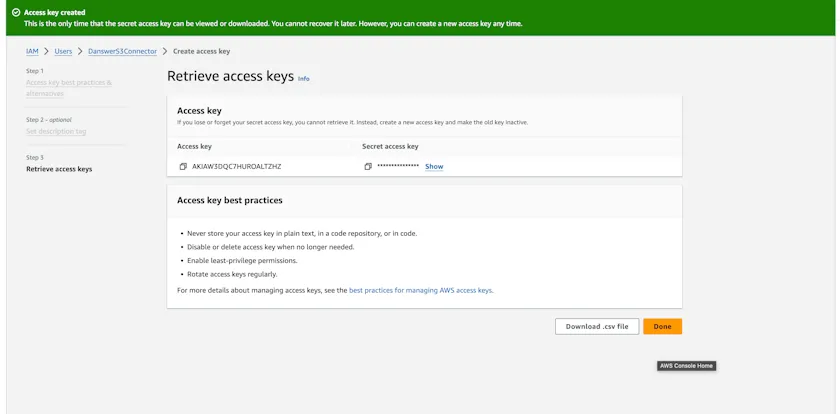
AWS security credentials page
Credential Entry in Negere-Fej
When configuring the S3 connector in Negere-Fej, you'll enter your credentials as follows:
- • AWS Access Key ID: Paste the Access Key ID you copied from AWS
- • AWS Secret Access Key: Paste the Secret Access Key you copied from AWS
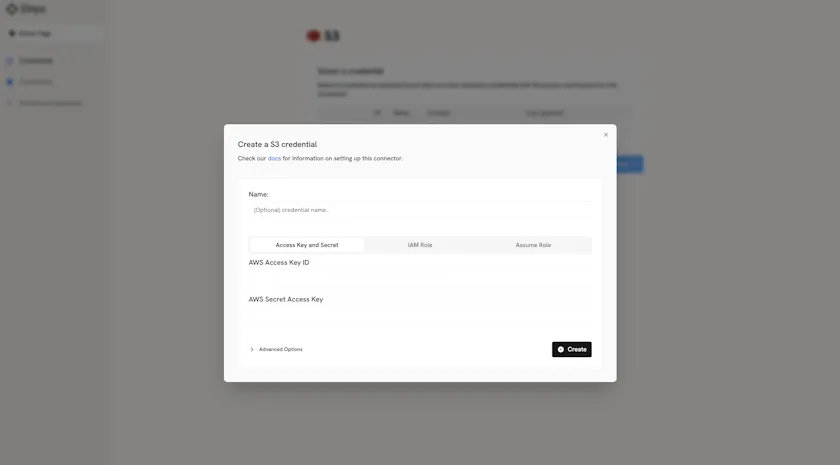
Negere-Fej S3 connector configuration with Access Key ID and Secret fields
Next Steps
Once you have your AWS Access Keys, proceed to the indexing steps in the overview to configure your S3 connector.