S3 IAM Role
Authorize the S3 connector using an AWS IAM Role with assume role policy
When to use this method
- • When you need to segregate permissions, granting specific S3 access without modifying your EC2 instance's main role
- • When you require temporary, frequently rotated credentials for S3 access, without managing long-lived access keys
- • When working in multi-account AWS environments, enabling cross-account S3 access through role assumption
Setting up the IAM Role
Create the S3 Access Role
In AWS Console, go to IAM › Roles and click Create role
For Trusted entity type, select Custom trust policy
In the Custom trust policy JSON editor, configure who can assume this role. You can choose from:
- • IAM Role: "AWS": "arn:aws:iam::YOUR_AWS_ACCOUNT_ID:role/YourExistingEC2Role"
- • AWS Service: "Service": "ec2.amazonaws.com" (for EC2 instances)
Example for EC2 role (replace YOUR_AWS_ACCOUNT_ID and YourExistingEC2Role):
{
  "Version": "2012-10-17",
  "Statement": [
    {
      "Effect": "Allow",
      "Principal": {
        "AWS": "arn:aws:iam::YOUR_AWS_ACCOUNT_ID:role/YourExistingEC2Role"
      },
      "Action": "sts:AssumeRole"
    }
  ]
}
Click Next
Attach AmazonS3ReadOnlyAccess policy or create a custom policy for specific buckets:
{
  "Version": "2012-10-17",
  "Statement": [
    {
      "Effect": "Allow",
      "Action": [
        "s3:GetObject",
        "s3:ListBucket"
      ],
      "Resource": [
        "arn:aws:s3:::your-source-bucket-name",
        "arn:aws:s3:::your-source-bucket-name/*"
      ]
    }
  ]
}
Name it (e.g., NegereFejS3AccessRole) and click Create role
Copy the Role ARN from the role summary page (e.g., arn:aws:iam::YOUR_AWS_ACCOUNT_ID:role/YOUR_CREATED_ROLE_NAME)
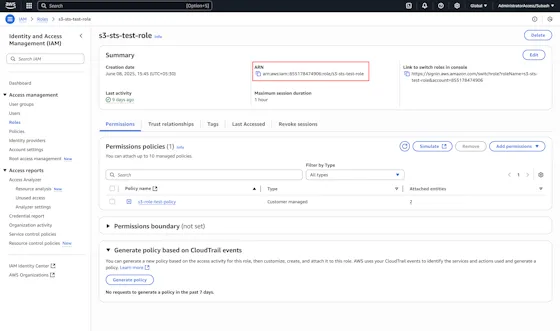
Diagram of page where role arn can be copied
Grant AssumeRole to EC2 instance role
Go back to IAM > Roles and find your EC2 instance's existing role
Click on the role and go to the Permissions tab
Click Add permissions > Create inline policy
Switch to JSON and add this policy (replace with your actual account ID and role name):
{
  "Version": "2012-10-17",
  "Statement": [
    {
      "Effect": "Allow",
      "Action": "sts:AssumeRole",
      "Resource": "arn:aws:iam::YOUR_AWS_ACCOUNT_ID:role/YOUR_CREATED_ROLE_NAME"
    }
  ]
}
Name the policy (e.g., AllowAssumeNegereFejS3Role) and click Create policy
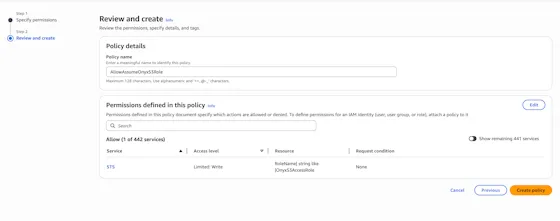
Diagram of IAM role assignment
Your EC2 instance now uses its existing instance profile to obtain temporary credentials for the NegereFejS3AccessRole, which can then securely interact with your designated S3 buckets.
Credential Entry in Negere-Fej
When configuring the S3 connector in Negere-Fej, you'll need to:
Open IAM Role tab
Click on the IAM Role tab
Enter Role ARN
Enter the Role ARN you copied earlier (e.g., arn:aws:iam::YOUR_AWS_ACCOUNT_ID:role/YOUR_CREATED_ROLE_NAME)
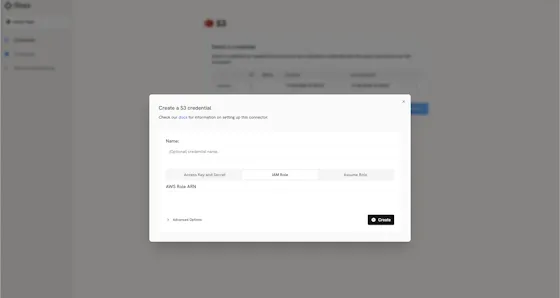
Screenshot of Negere-Fej S3 IAM role configuration with tabs
Next Steps
Once you have your IAM Role ARN, proceed to the indexing steps in the overview to configure your S3 connector.